
How to use Microsoft Outlook and Viva Insights to manage your productivity
As a product manager, your calendar is more than just an application to track dates; it’s your lifeline. With a constant stream of meetings and tasks, some crucial, others merely time-fillers, taming your calendar is vital to your success. Calendar management is the key to prioritizing your tasks, meetings, and deadlines. By blocking out dedicated time for focused work, you can avoid the chaos of back-to-back meetings and concentrate on driving your product forward. This approach ensures uninterrupted periods for tackling the significant and strategic tasks that only you can handle.
In the world of product management, there’s an abundance of software, tools, and systems designed to optimize your workflow. But sometimes, company policies are stringent regarding where their data resides so you may be locked into a particular tech stack. If your organization is firmly planted in the Microsoft ecosystem, here are some cool tips to leverage Microsoft’s products for a more efficient product management journey.
Why Should You Categorize Your Meetings?
Categorizing meetings can significantly benefit you for several reasons:
- Prioritization: Categorizing meetings allows you to prioritize your meeting attendance based on their relevance to your role and goals. Multiple meetings and conflicting schedules are part of the daily grind. By categorizing them, you can swiftly determine which conflicts take priority.
- Time management: Categorization also enhances your time management skills. It prevents overloading your calendar with similar types of meetings back-to-back, avoiding burnout and ensuring you have time for other essential tasks.
- Preparation: Categorization encourages better preparation. Knowing the category of a meeting in advance helps you gather relevant information and materials. It ensures active participation and more efficient communication within your team. You should always be sure to set clear agendas for each meeting and share them with participants. This keeps discussions on track and maximizes productivity. If you receive meeting invites without agendas, ask the organizer to provide one, this can also help you to determine if your attendance is needed.
- Reduced mental workload: By categorizing meetings, you reduce cognitive load and provide structure to your day. This allows you to focus on specific topics during specific times, minimizing the strain of context switching. As a product manager, shifting from one topic to another is part of the role, but it can be taxing. Aim for dedicated time slots for tasks that require deep focus. When scheduling conflicts arise, categorization helps you identify and resolve them to prevent double-booking or overlapping commitments.
How to Categorize Your Meetings
For most product managers, opening your Outlook calendar can be overwhelming, with multiple meetings crammed into your schedule. However, not all these meetings are essential (if they are then we need to talk about delegation). Categorizing your meetings by colors can help you identify their topics quickly and decide which ones take precedence.
Some meetings serve as placeholders, and you may not want to attend them, but you don’t want to keep declining the invites, then awkwardly asking for it again when you need it. To manage this effectively, you can hide these meetings from your main calendar. Here’s how to do it:
Note: This method works with the Microsoft Outlook client app but not on Microsoft Outlook web.
Step 1: Create a New Category
- Open up your Outlook app and select your calendar
- Right-click on a meeting.
- Select “Categorize” > “All Categories.”
- Choose “New” and give each category a name and a color. This includes meetings you don’t want on your main calendar. For those meetings, I titled it as “non-essential.”

Now let’s filter your calendar to only the categories you want to see.
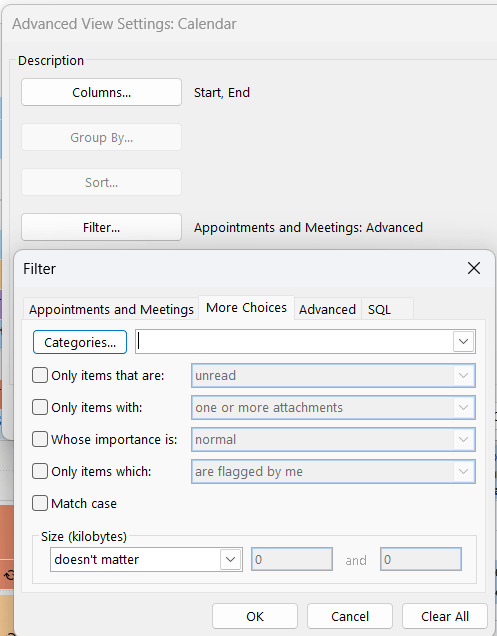
Step 2: Create a Filtered View
- Still in the Calendar tab, Select View > Current View > View settings > Filter > Advanced
- Create a new item that says “Categories + doesn’t contain + <the category you made earlier>”
- Select OK
Step 3: Categorize Your Meetings
In the calendar, assign the relevant category to meetings you want to keep but not see on your primary calendar.
By categorizing your meetings, they won’t disappear entirely; you’ll still receive reminders in the Outlook client app, and the meetings will show in Microsoft Teams, Outlook mobile, and Outlook Web Access. The benefit is that you can now easily see where you have free slots for productive work.
Measure Your Productivity with Viva Insights
Since you must use Microsoft products, you should go all in. The benefit of Microsoft’s ecosystem is that everything talks to each other. If your organization uses Microsoft Viva Insights, you can go a step further in understanding how you spend your time. Microsoft Viva Insights is a tool designed to help employees and organizations improve their productivity in the workplace. It provides personalized insights and recommendations based on data from various sources such as Microsoft Teams, Outlook, and other workplace productivity tools. With this tool, users can track their work patterns, set goals, and receive guidance on how to optimize their work habits for better performance and work-life balance.
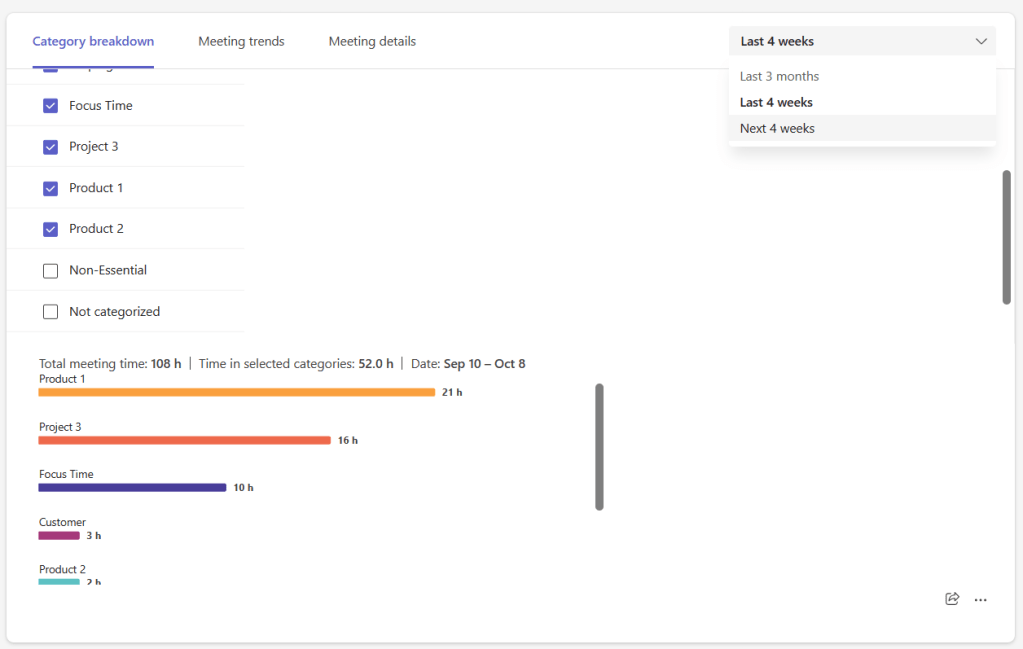
For the purpose of this post, we will use this tool in the context of automatically calculating how you spend your time based on your categorized meetings and non-meeting time (focus time). This feature is invaluable if you ever need to provide insights on your time management to management or for your own reference.
Some people use excel to track, others may just write it down on a sheet of paper and tally it up at the end of each day. With Viva Insights, if you categorize your meetings and categorize your non-meeting time (focus time), it will show you an aggregate of how much time you spend on each category for a specified period. So if your manager asks you, how much time have you spent on Product 1? You don’t have to manually figure it out. Even if you are not in a meeting, schedule the work or focus time on your calendar to make sure it’s all accounted for. Or if you need to spend more time on Product 2 but notice Project 3 is taking up all your time, you can begin to shift your habits.
How do I know if my company has Microsoft Viva Insights?
To determine if your organization has access to Microsoft Viva Insights:
- Go to https://www.microsoft365.com/apps.
- Select “All apps.”
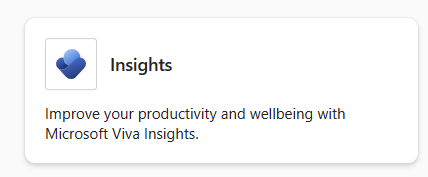
- If it’s available, you will see a tile called “Insights.”
Effective calendar management is fundamental for product managers. It allows you to optimize your time, boost productivity, and take charge of your product’s development and success. A well-structured approach to managing incoming requests is a valuable skill that pays off in the long run.
Did you find this article valuable? Stay up to date with more product management insights and resources by subscribing to our newsletter.
 PM PowerUps
Leave a comment